Use Settings to manage information that affects your account experience and its security.
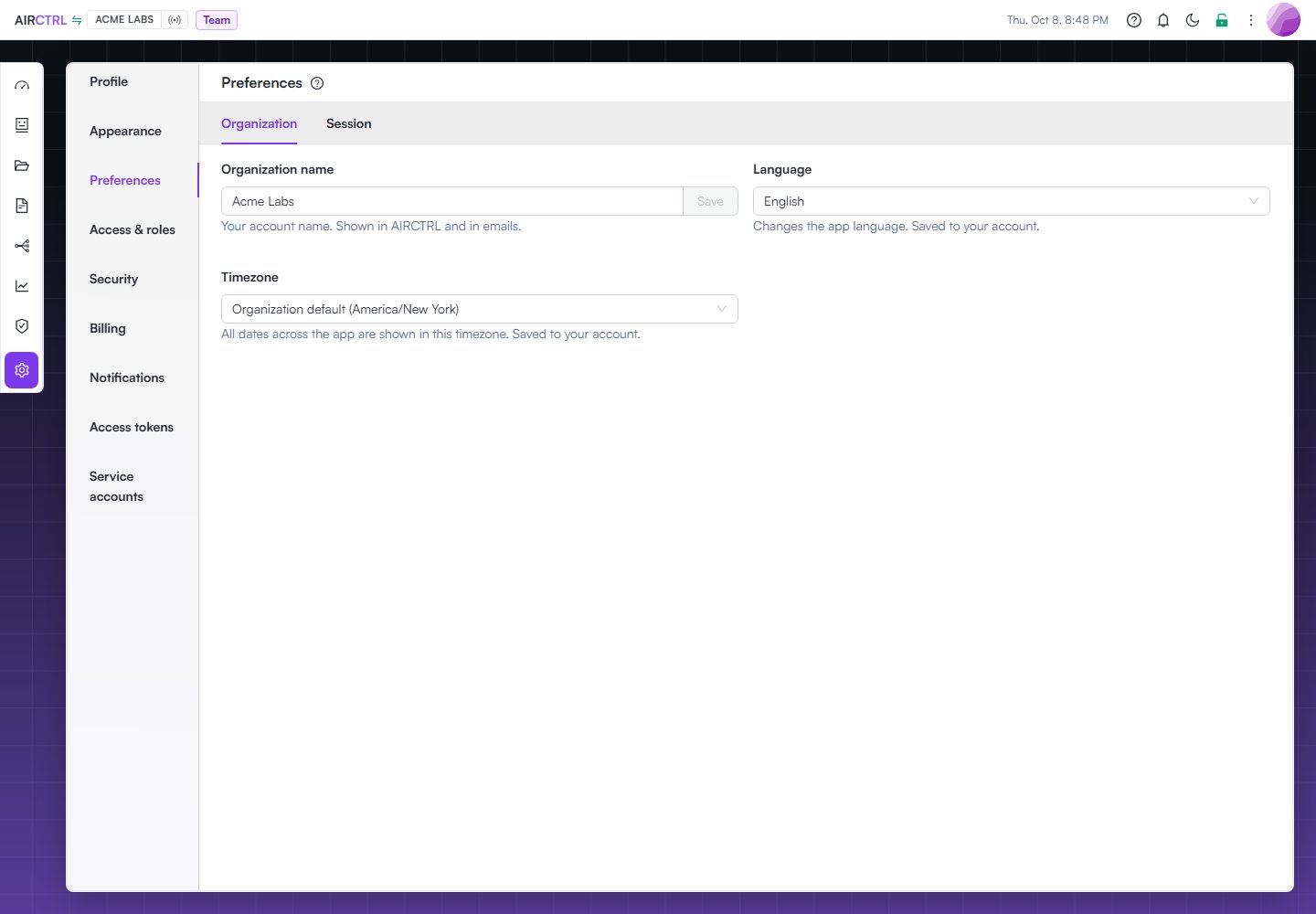
Acme Labs organization preferences showing the organization name, English as the language, and the organization default timezone.

Organization preferences let Acme Labs maintain its name, language, and timezone in one place.

Update your profile

Open Settings and choose Profile. Update your display name or username, then save the change. Use a clear display name so teammates can recognize you in member lists and activity.
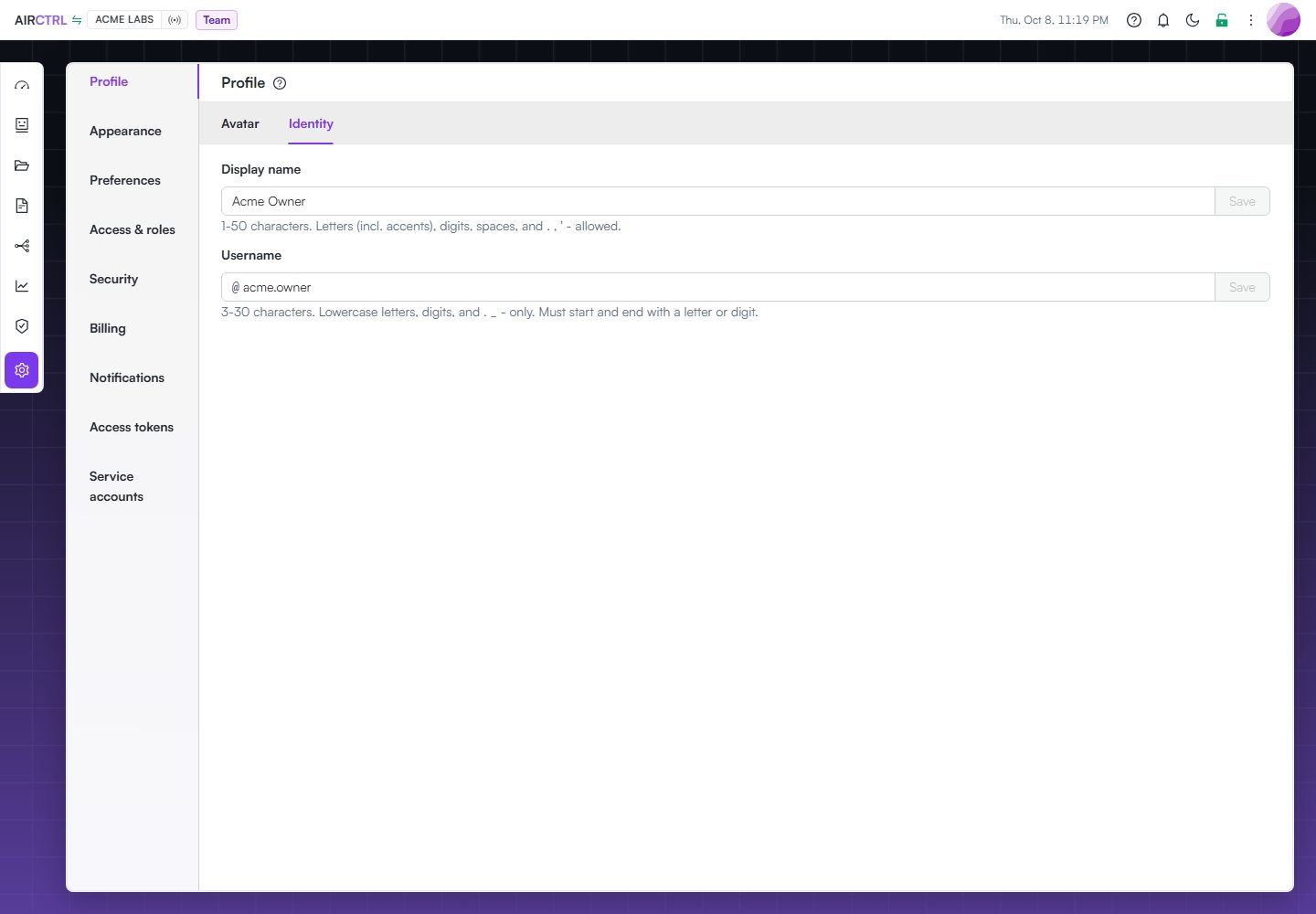
Acme Owner Profile page showing the Acme Owner display name and acme.owner username.

The Acme Owner profile keeps the display name and username separate so each can be updated deliberately.

The Identity tab contains your display name and username.

Choose your avatar

Open Settings and choose Profile > Avatar. Select an available avatar to apply it immediately. Choose None to remove the artwork. Avatar color saves when you select a color; Auto restores the generated color.

Set your organization preferences

Open Settings and choose Preferences. Use the organization settings to review the organization name, language, and timezone. Choose the timezone that makes account activity and time-based information understandable to you. Confirm the saved value before you leave the page.

Set your session preferences

Open Settings > Preferences > Session to choose how long can remain idle before signing you out. Choose the default policy or one of the available time limits. warns you before the timeout. Use Signed-in devices to review browsers and devices where your account is signed in. Select Sign out beside a device to end that session, or choose Sign out from this device to end the current session.

Protect your sign-in

Open Settings and choose Security. In 2FA, manage your authenticator app or SMS verification. Use Email to verify addresses and choose the primary address. Use Recovery for sign-in recovery codes and vault recovery. Organization recovery tools appear when your account and role allow them. In Privacy, control whether collects product analytics about your onboarding and app usage. Keep recovery codes and recovery kits in a secure place outside . Do not store recovery material in a record that other people can access. When you reset a sign-in password, complete the verification flow before setting a new password. Your vault passphrase remains a separate secret. For access changes that affect other people, use Manage access instead.

Change appearance

Open Settings and choose Appearance. Use Themes to choose the app theme, accent, and sidebar pattern. Use Background to choose a wallpaper and its readability overlay. Use FX to adjust glass panels, shadows, and background blur. These choices affect how the app looks on your account. They do not change project access or record contents.

Choose notifications

Open Settings and choose Notifications. In-app & desktop controls which categories also send desktop notifications; in-app notifications remain available from the notification bell. Push lets you enable background notifications on the current browser when it supports them and grants permission.