This guide is for account administrators who manage who can work in and what they can do.
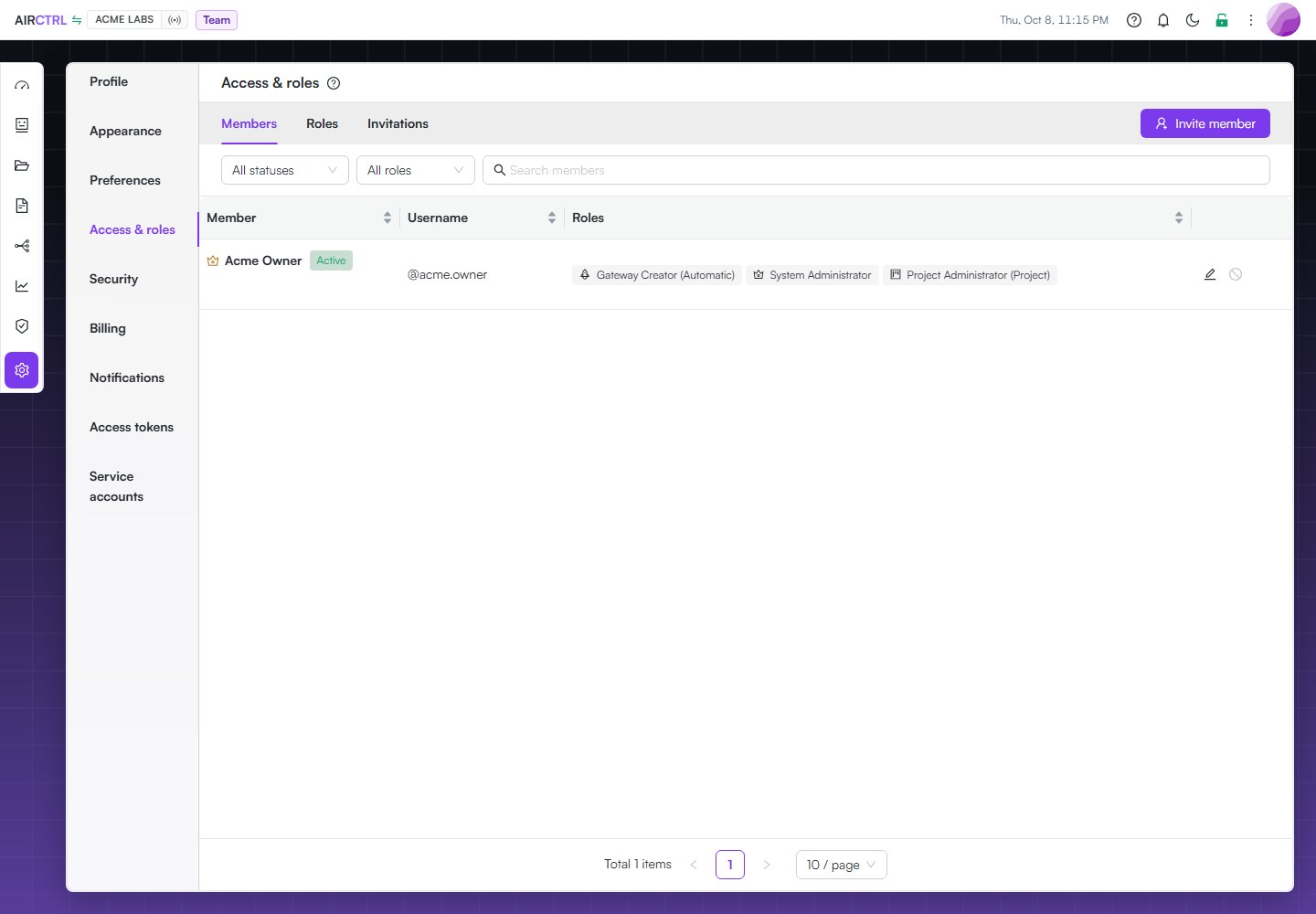
Acme Labs Members & Roles list showing the active Acme Owner and their Gateway Creator, System Administrator, and Project Administrator roles without an email address.

Members & Roles shows the current Acme Labs owner, their active status, and the roles assigned to the account.

Invite a member

  1. Open Settings and choose Access & roles.
  2. Select Invite member.
  3. Enter the person’s email address and choose the appropriate role.
  4. Send the invitation.
Use the Invitations tab to review pending invitations and revoke an invitation that should no longer be accepted. For the steps the invited person follows, see Accept an invitation.

Assign and review roles

Use the Members tab to open a member’s roles. Assign only the permissions the person needs for their work. Review role changes before you save them. Use the Roles tab to review account roles and their permissions. The Members tab is where you assign those roles to people. Owners have safeguards that protect the account from losing its required ownership. Do not use role changes as a shortcut around those safeguards.

Deactivate or reactivate a member

Deactivate a member when they should temporarily lose access. Reactivate them only after you confirm that their role and project access are still appropriate. For permanent removal, follow your account’s offboarding process and revoke record sharing that is no longer required.