

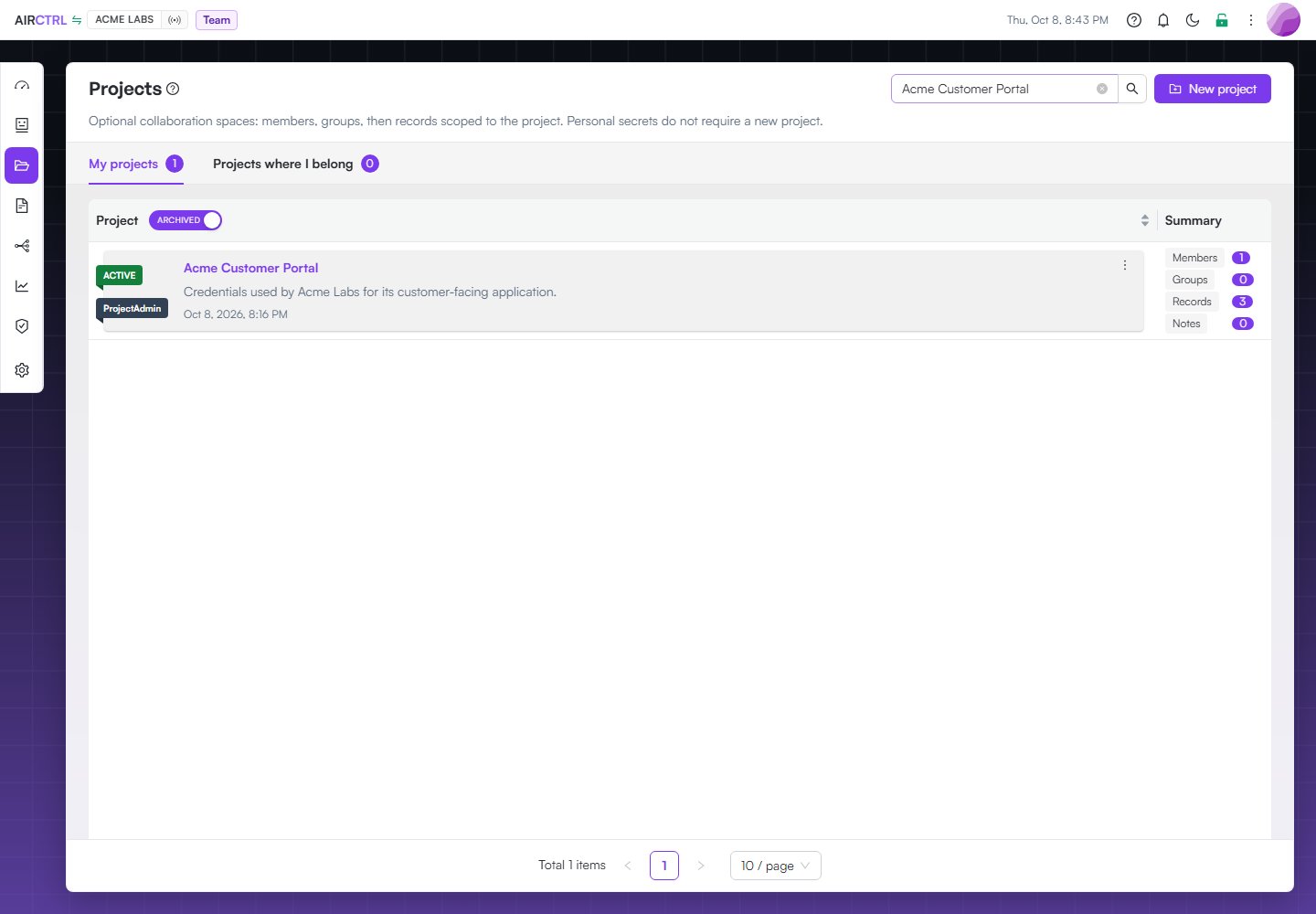
Acme Customer Portal is active and shows the members, groups, and records currently connected to the project.
Create a project
- Open Projects.
- Select New project.
- Enter a clear name and any requested details.
- Review the information and create the project.
Choose a clear project boundary
Use one project for work that should share the same membership and access boundary. Do not put unrelated applications in one project only because they use the same provider or deployment environment. Before you create records, confirm that the correct project is active. A record belongs to its project and access is evaluated in that context.Archive a project
Archive a project when its work is complete and it should no longer accept normal activity.- Find the project in Projects.
- Open its actions menu.
- Select Archive and confirm the action.
Manage groups in a project
Groups belong to a project, not to the account-wide Access & roles settings. Open the project in Detail or Graph view, then select Groups. Use a group when the same set of members repeatedly needs the same project role or record access. Give each group a name that describes its work, such as a platform or finance team. The Groups action is available only when your account plan and project permissions allow it. Adding more members makes groups useful, but it is not what makes the action appear. Review Operating safely before changing access for a production project or sharing a record with a group.Use Detail and Graph as two views of the same project
Open a project and switch between Detail and Graph. Both views use the same project, membership, group, note, record, audit, and lifecycle sources. Changes made from one view are refetched into the other; Graph is not a separate copy of the project.- Use Groups from either view to manage the project’s groups and inherited access.
- In Detail, select the Notes card in the right rail. In Graph, use the Notes node action. Both open the same create, edit, and delete workflow when your permissions allow it.
- In Graph, expand Members, Records, Notes, Audit, or Telemetry to inspect the corresponding live project data. The Telemetry cluster is calculated from gateway requests in that project for the selected 24-hour, 7-day, or 30-day range.