

Already have an account with that email address? Sign in to it instead of creating another one. Complete the two-step verification method already set up for that account.
1. Open the invitation link
If this is your first account, the link may ask you to set a sign-in password. Create it and continue. If you already have an account, sign in with your existing password instead.
Set a sign-in password if the invitation asks you to finish joining.
2. Set up two-step verification
New accounts must set up two-step verification before entering. If asks you to enroll it, choose Authenticator app. If two-step verification is already enabled on your account, complete the check shown after you sign in instead of enrolling it again.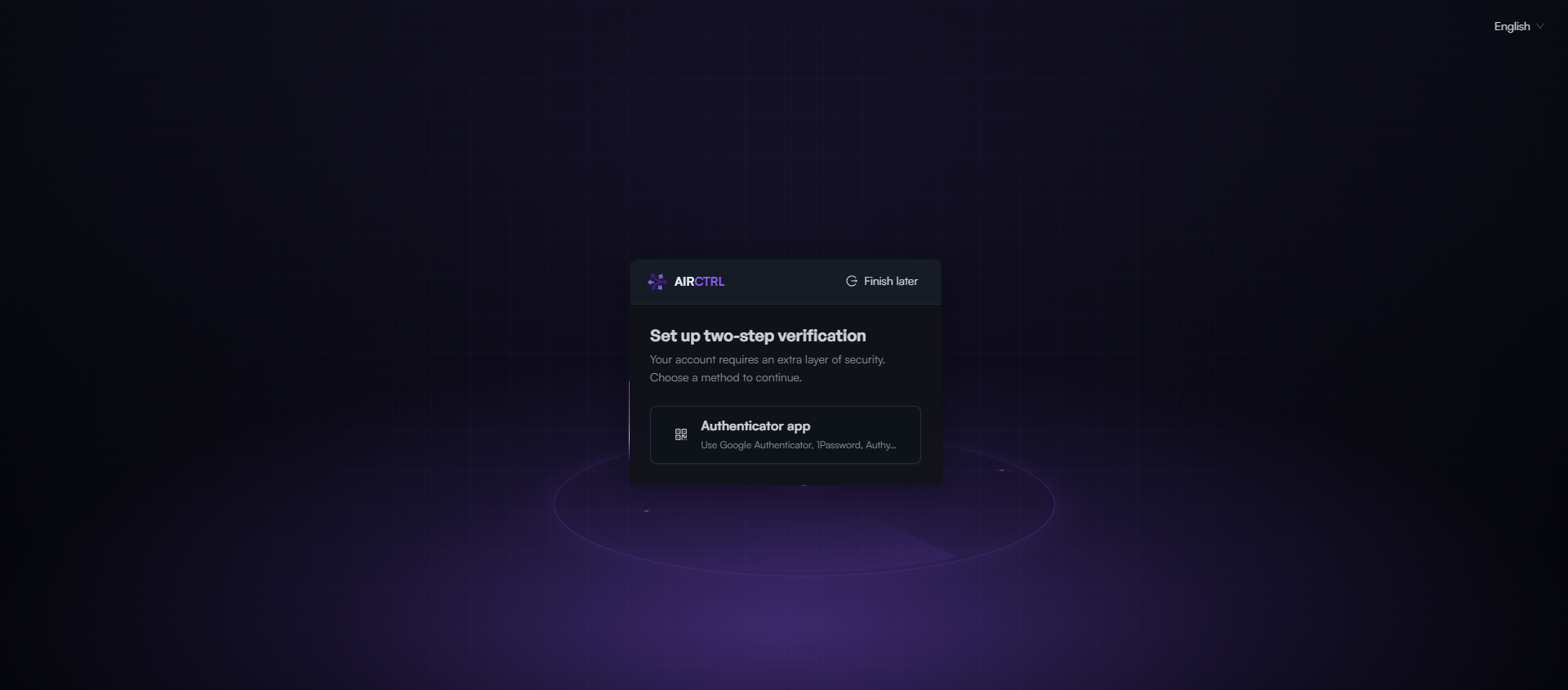
Choose the authenticator app for two-step verification.
3. Connect your authenticator app
When you enroll a new authenticator, scan the QR code with the app. If you cannot scan it, enter the setup key shown on the screen. Then enter the six-digit code from your authenticator app to verify the setup. Keep the QR code and setup key private. Do not send them to the person who invited you or to support.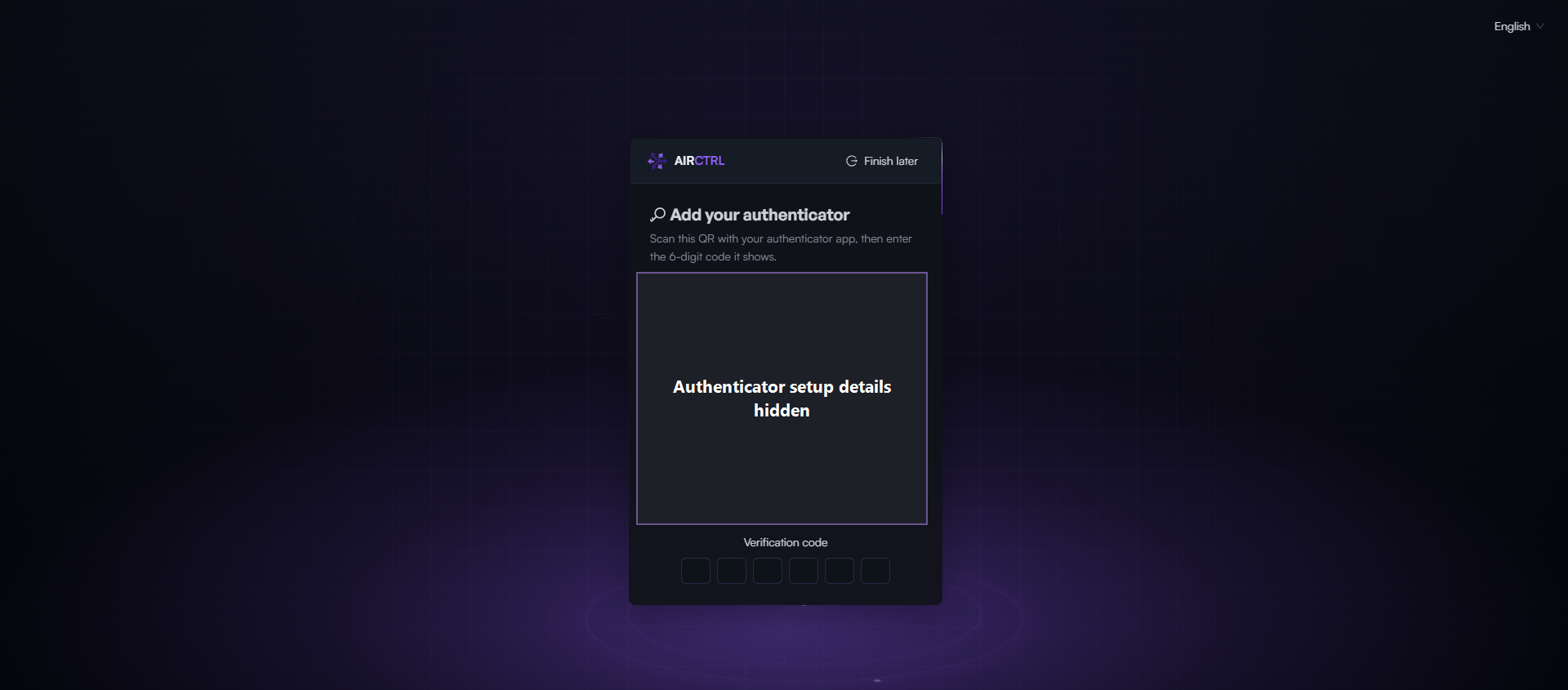
The QR code and setup key are hidden in this guide image. Keep the values shown in your account private.
4. Save your sign-in recovery codes
When you set up two-step verification for the first time, save the recovery codes before you continue. Each code works once if you cannot use your authenticator, and will not show this set again. These codes are for signing in. They are different from the vault recovery kit in step 7. If you leave before saving them, they stop working. Generate and save a fresh set when you return.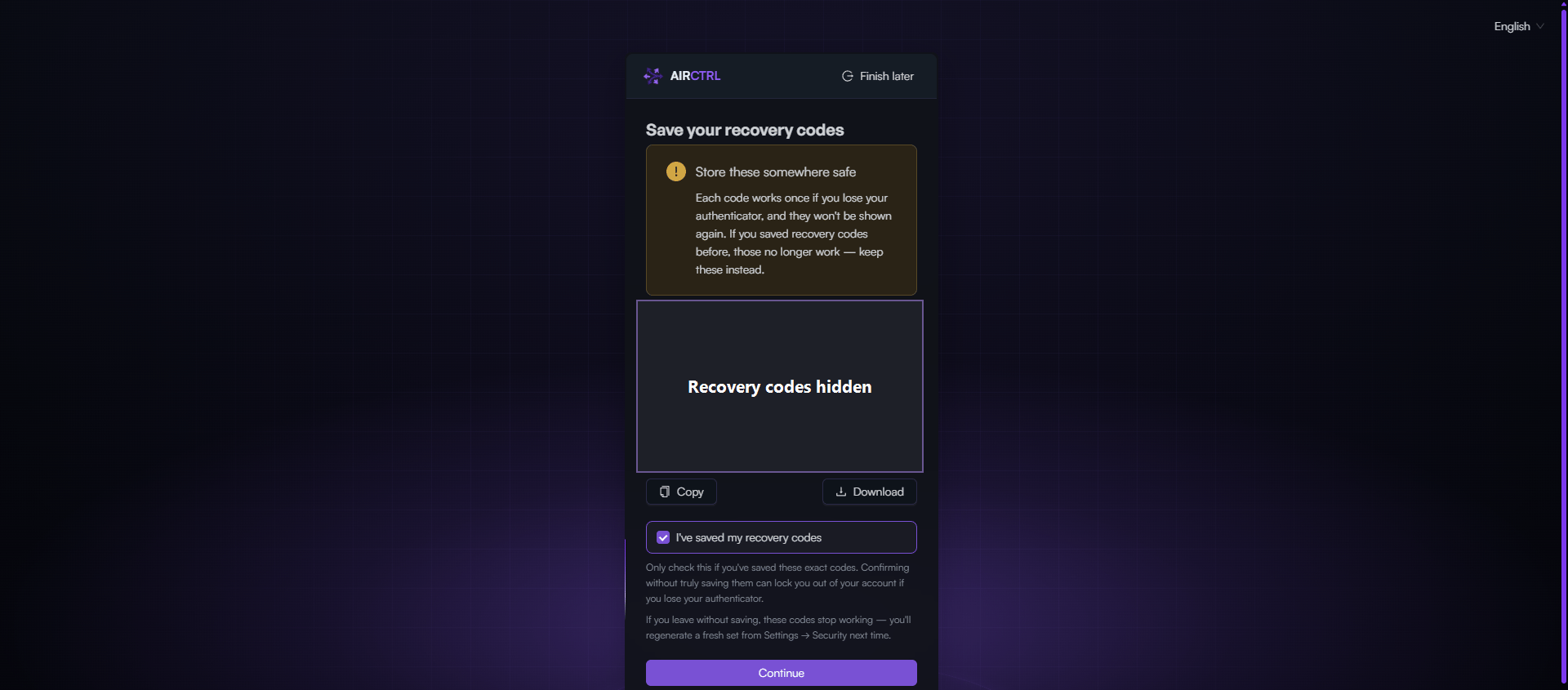
Save the one-time two-step verification recovery codes before continuing. Their values are hidden here.
5. Complete your profile
Enter a display name and a unique username. Both are required. Your display name is how teammates see you; your username is your account handle. Follow the rules shown under the username field.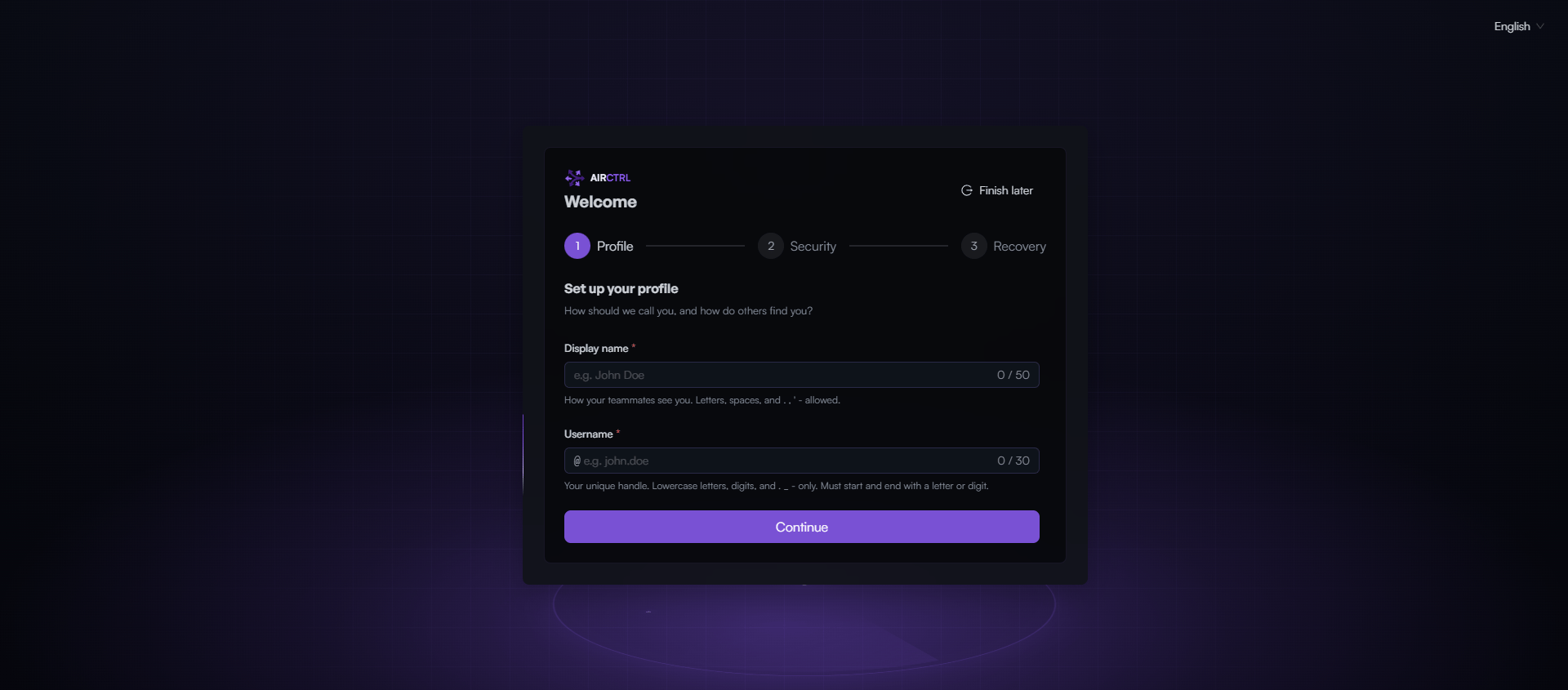
Enter the display name and username you want teammates to see.
6. Set your vault passphrase
Create and confirm a vault passphrase with at least 10 characters. It is different from your sign-in password. does not see this passphrase and cannot reset it, so keep it somewhere safe.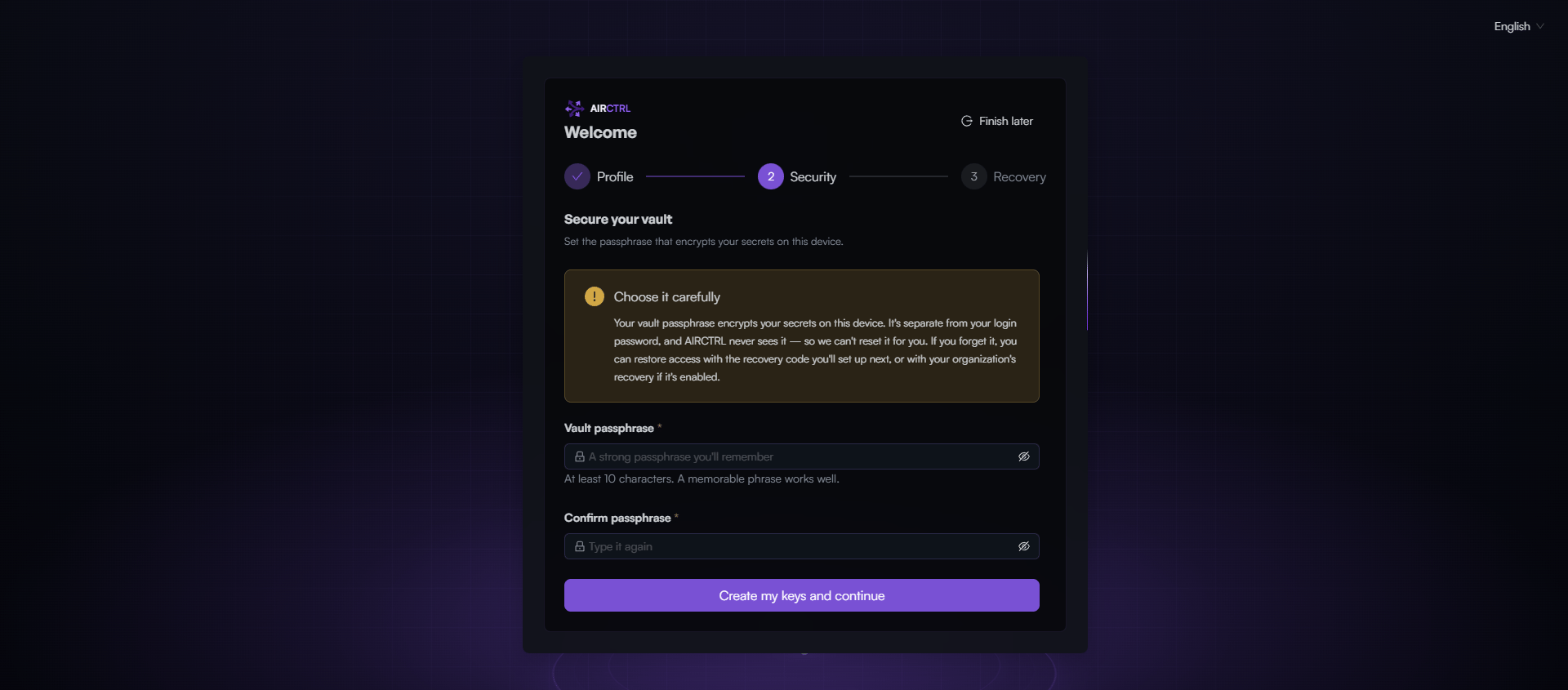
Create and confirm the passphrase that protects your vault on this device.
7. Save your vault recovery kit
Save the recovery code or recovery phrase, or download the recovery kit. You need one of these if you forget your vault passphrase. They do not sign you in to your account; you still need your account sign-in. The vault recovery kit is different from the two-step verification recovery codes in step 4. Keep both types private. If you leave before saving the kit, asks for your vault passphrase so you can generate a fresh kit when you return.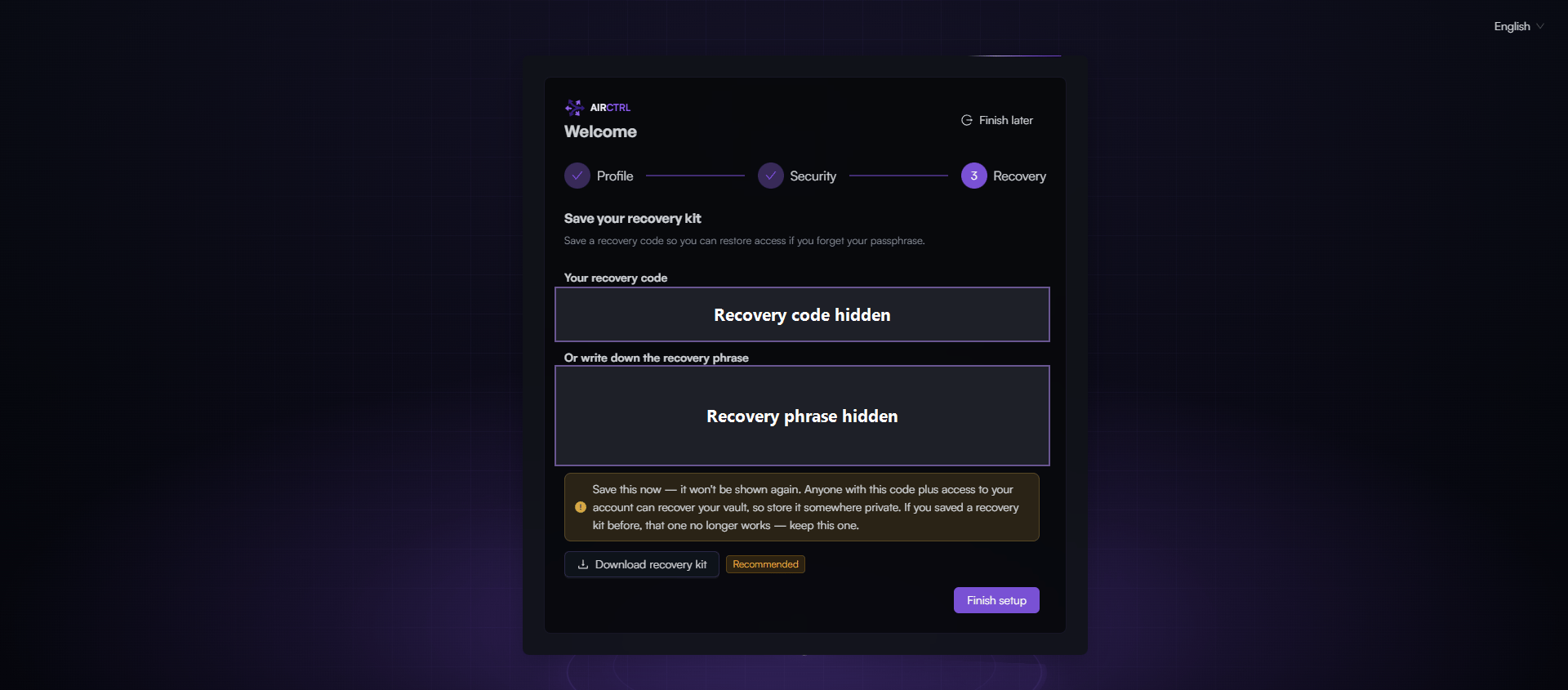
Save the vault recovery code or phrase, or download the kit. The values are hidden in this guide image.